Your ACE account. Your private calendars. Share only what you choose.
New passwords need at least 12 characters. Use your existing ACE login if you already have one.
ACECALENDAR
Coming up
Next 30 days
ACE CALENDAR GUIDE
A little help with your plans.
Learn the controls, save your favorite shifts, and share only what you choose.
The screenshots below use sample events and accounts. Tap a screenshot to open it full size.
Find your way around
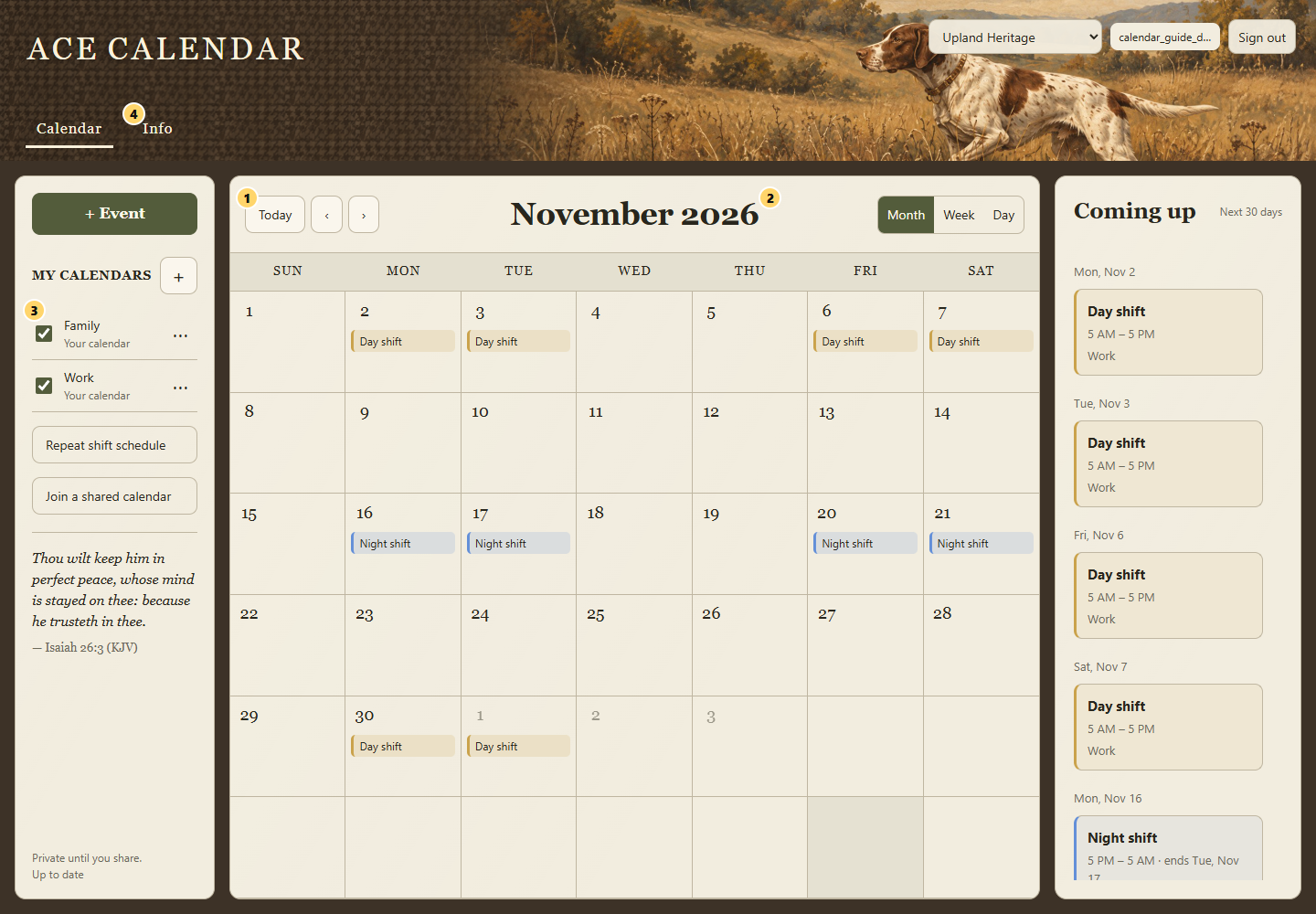
1. Move between dates. 2. Choose Month, Week, or Day. 3. Choose which calendars you see. 4. Return here for help.
Today returns to the current date. Use the arrows to move by a month, week, or day. Weeks start on Sunday.
On a computer, click a date to open its Day view. On a phone, tap to select a date, then use the bottom Day tab for its full schedule. Month chips show titles; Day view shows full times, including the next-day end of a night shift. Check or uncheck a calendar to show or hide it. Hiding it does not delete it.
Create events and save your usual shifts
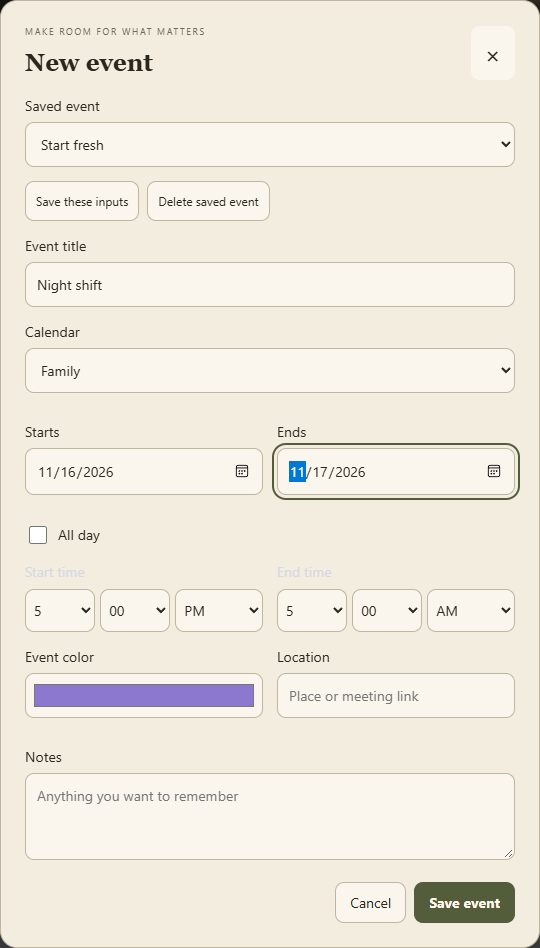
Use the next day's end date for an overnight shift. Saved inputs make the next event quicker.
Choose + Event. On a computer, you can also right-click a date. On a phone, press and hold a date to open New Event for that day, or use the + button.
Enter a title and choose the calendar. Set both dates, then the hour, minute, and AM or PM. For 5 PM to 5 AM, choose the following day as the end date.
Choose the event's color, add optional location or notes, then Save event.
Save these inputs creates a reusable preset without adding an event. Choose it from Saved event next time, check the dates, and save the event. Delete saved event removes the preset; events already on your calendar stay.
To edit or delete an event, open the date, then its event. When editing, check Apply name and color changes to matching events in this calendar to update events with the same original title in that calendar. Other calendars are untouched.
Extend a repeating shift schedule
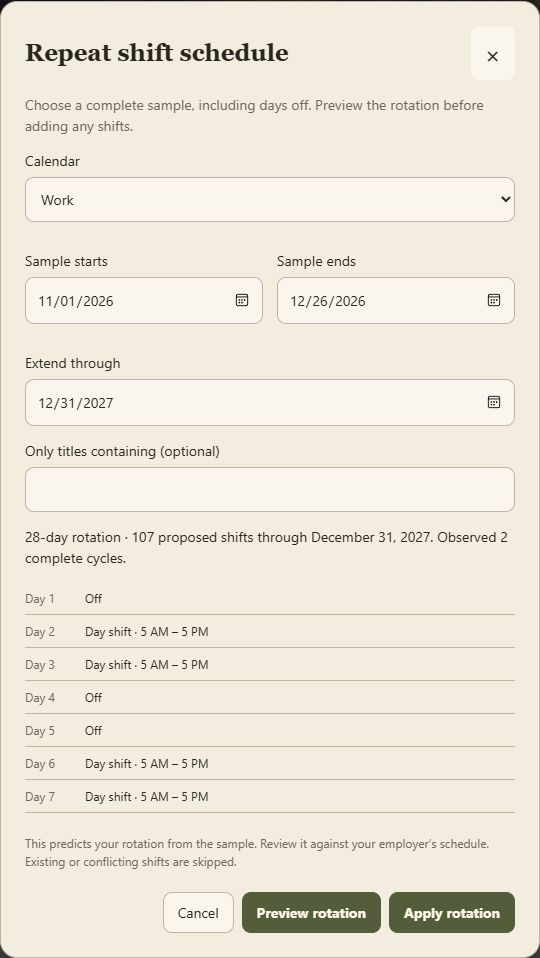
Preview first. No shifts are added until you choose Apply rotation.
Fill in a complete sample of your work rotation. Include the days off by leaving those days empty.
Select Repeat shift schedule, choose the calendar, sample start and end dates, and Extend through date.
Choose Preview rotation. Review the detected cycle, day and night shifts, and any tentative-pattern warning.
If it matches your schedule, choose Apply rotation. Existing duplicates and conflicting shifts are skipped.
If no clear pattern is found, provide a longer complete sample. Two full cycles give stronger evidence; a full cycle with a matching partial repeat can be offered as tentative. This predicts a rotation, so check it against your employer's schedule. No voice or paid AI request is needed.
Share one calendar and keep the rest private
Each calendar has its own invitation and permissions.
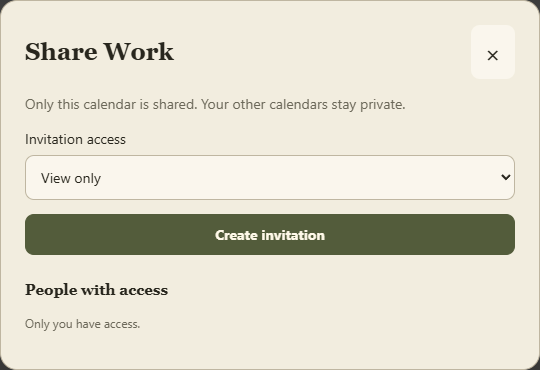
Choose the three dots beside a calendar you own, then Share this calendar.
Select View only or Can edit, create an invitation, and copy its link.
The recipient signs into their own ACE account and uses the link or Join a shared calendar. An invitation works once and expires after seven days.
View only can read events. Can edit can add, change, and remove events. The owner manages the calendar and can revoke sharing under People with access. Deleting a calendar removes its events and access for everyone, after confirmation.
Choose a theme
Use the theme selector in the desktop header, or open the phone menu and choose Calendar theme. Upland Heritage, Marshland Heritage, Hunting Lodge, Field Canvas, Faith Journal, Wilderness Lodge and Faith & Field use the same calendar controls. Your choice is saved to your ACE account for your next sign-in on any device.
Automatic syncing
While signed in, the website checks for changes about every 10 seconds when visible and not editing. Connected calendars in ACE Platform also sync automatically. Your browser must be online to save; a failed save keeps the form open. Desktop offline changes stay local and retry when connected.
If you see changed elsewhere, keep a copy of your unsaved text, close the editor, let automatic sync finish, and reopen the latest event. Desktop conflicts keep both versions and need review in Account Sharing. The website updates automatically; Sync now in ACE Platform remains available.
Use it on your phone
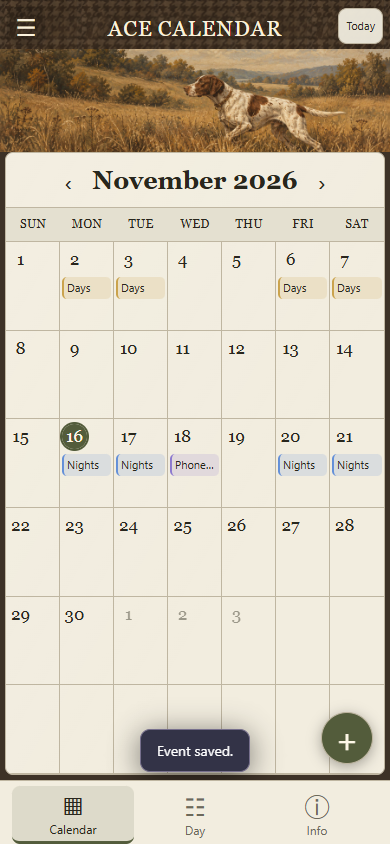
The full-screen month stays in Calendar. Tap a date to select it, use Day for its readable event list, and use Info for help. Open the top-left menu to select calendars, manage sharing, repeat schedules, choose a theme, or sign out. Press and hold a date to add an event; moving your finger cancels the hold.
The phone layout gives the month its own screen.
Open https://acecalendars.com in Safari or Chrome. You can add it to your home screen from your browser's menu. Sign in with the same ACE account on every device.
Patch notes
Updates are listed newest first. New notes appear once per account until you acknowledge them.